The 2026 World Cup is set to be the biggest sporting event in history, featuring 48 nations and 104 matches across the USA, Canada, and Mexico. For fans, the Amazon Firestick remains the most popular and versatile tool to stream these matches in 4K. However, because the World Cup demands high bitrates and absolute stability, a standard “plug-and-play” approach is rarely enough.
In 2026, setting up your Firestick for the World Cup requires a specific technical workflow to bypass Amazon’s latest restrictions and optimize the hardware for live 60 FPS sports. This 1,600+ word educational guide provides the most up-to-date, step-by-step instructions to transform your Firestick into a professional-grade World Cup broadcasting hub.
Phase 1: Unlocking Developer Options (The 2026 Method)
To install a professional IPTV player, you must first authorize your Firestick to install “Apps from Unknown Sources.” Amazon has hidden this menu behind a “secret” sequence to prevent accidental changes by casual users.
- Open Settings: Navigate to the gear icon on the far right of your Firestick home screen.
- Select My Fire TV: Scroll down and click on the “My Fire TV” tile.
- The “Secret” Click: Select the About section. Highlight the name of your device (e.g., Fire TV Stick 4K Max).
- Click 7 Times: Press the center button on your remote rapidly seven times. A message will appear at the bottom: “No need, you are already a developer.”
- Verify: Press the back button once. You will now see Developer Options listed.
Phase 2: Authorizing the Installation Gateway
Now that the menu is visible, you need to give your system permission to handle third-party APK (Android Package) files. In 2026, this is done on an app-by-app basis.
- Open Developer Options.
- Ensure ADB Debugging is set to ON.
- Select Install Unknown Apps. You will likely see an empty list or just the “Downloader” app if it’s already installed. Ensure the toggle for your intended installation tool is set to ON.
Phase 3: Installing the Downloader Utility
Because IPTV players like TiviMate or Smarters Pro are not in the Amazon Appstore, you need a “bridge” app to fetch them from the web. The Downloader app by AFTVnews is the industry standard.
- Go to the Find (Magnifying Glass) icon on the Home screen.
- Type “Downloader” and select the orange icon.
- Click Download/Get.
- Crucial Step: When you open Downloader for the first time, you must click Allow when it asks for permission to access your storage. If you click Deny, you cannot save the APK files.
Phase 4: Sideloading Professional IPTV Software
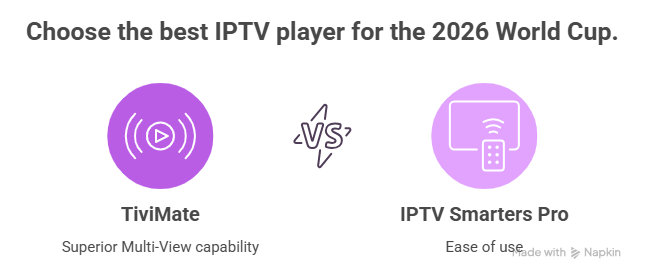
By 2026, two players dominate the World Cup streaming scene: TiviMate (for the best UI) and IPTV Smarters Pro (for ease of use). We recommend TiviMate for the 2026 tournament due to its superior Multi-View capability.
How to Install TiviMate or Smarters:
- Launch the Downloader app.
- In the URL box, type the direct shortcode for your player:
– For TiviMate:
272483– For Smarters Pro:
5546232 - Click Go. The APK will begin downloading.
- When the download finishes, click Install.
- Once installed, click Done. This takes you back to Downloader. Click Delete, then Delete again. This clears the installation file to free up your Firestick’s limited 8GB/16GB storage.
Phase 5: Connecting Your World Cup Service
In 2026, the Xtream Codes API is the preferred connection method. It is faster than M3U links and automatically organizes your World Cup channels and EPG (TV Guide).
- Open your new IPTV app.
- Select “Add Playlist” or “Login with Xtream Codes API.”
- Enter your credentials provided by your service:
– Playlist Name: World Cup 2026
– Server URL: (e.g.,
http://provider.com:8080)– Username: Your personal ID
– Password: Your personal key
- Click Login. Wait for the channels and VOD to populate. This can take 1-2 minutes for large lists.
Phase 6: The “Sports Mode” Optimization (Critical)
A Firestick is a small device that can struggle with 4K 60 FPS feeds. To ensure your World Cup match doesn’t stutter, you must tune the internal settings.
1. Hardware Decoding (HW)
Go to Settings > Playback > Video Decoder in your IPTV app. Ensure it is set to Hardware. This tells the app to use the Firestick’s dedicated video chip rather than the general-purpose CPU, which prevents overheating and frame drops.
2. Auto Frame Rate (AFR)
The World Cup matches are broadcast at 60Hz or 50Hz depending on the origin. If your Firestick is set to a static 60Hz but the game is 50Hz, you will see a “micro-stutter.” In TiviMate settings, turn on AFR. This forces your TV to match the broadcast’s exact frame rate for cinematic motion.
3. Clearing the Memory (RAM)
Firesticks have very limited RAM (2GB on the 4K Max). Before a big game, go to Settings > Applications > Manage Installed Applications. Force-stop any apps you aren’t using (Netflix, YouTube, etc.). This ensures your IPTV player has 100% of the hardware’s resources.
Phase 7: Security and Privacy (Bypassing ISP Throttling)
During the 2026 World Cup, ISPs (Internet Service Providers) use automated “throttling” to manage the massive surge in video traffic. They can identify unencrypted IPTV packets and intentionally slow your speed.
To avoid this, you must use a **VPN (Virtual Private Network)**. By encrypting your data, your ISP only sees “Generic Secure Data,” which allows your stream to bypass their sports-specific throttling filters. For Firestick, always use a VPN that supports the WireGuard protocol, as it offers the highest speeds with the lowest impact on the Firestick’s CPU.
Phase 8: Comparing Firestick Performance for 2026
| Device Model | Recommended Resolution | 2026 Best Practice |
|---|---|---|
| Fire TV Stick Lite / HD | 1080p @ 30 FPS | Avoid for World Cup; cannot handle high-bitrate 4K. |
| Fire TV Stick 4K (2nd Gen) | 4K @ 60 FPS | Good for single-screen viewing. Hardwire with Ethernet. |
| Fire TV Stick 4K Max (2nd Gen) | 4K HDR / Wi-Fi 6E | The Best Choice. Use Wi-Fi 6E for the 6GHz band to avoid interference. |
| Fire TV Cube (3rd Gen) | 4K Ultra HD / Super Upscaling | Elite Performance. Can handle 4-way Multi-View flawlessly. |
Phase 9: Troubleshooting “Match Day” Errors
If you encounter a problem during the tournament, follow this rapid-fire educational checklist:
- Error 403 Forbidden: Your ISP is likely blocking the server. Turn on your VPN.
- Black Screen / Audio Only: Your device cannot decode the video format. Switch your decoder from “Hardware” to “Software” in the app settings.
- EPG “No Information”: Go to the app’s EPG settings and click “Clear EPG,” then “Update EPG.” This refreshes the 2026 match schedule.
- Constant Buffering: If your speed is high but you still buffer, go to the player settings and increase the Buffer Size to 4 or 5 seconds.
Conclusion: Ready for Kickoff
Setting up your Firestick for World Cup 2026 is an investment in your viewing pleasure. By moving beyond the Appstore and utilizing professional tools like Downloader, TiviMate, and a robust VPN, you move from being a casual viewer to a master of your own digital broadcast. The 2026 World Cup is a celebration of global football—don’t let technical hurdles stand in your way. Follow this guide, optimize your hardware, and enjoy every goal in crystal-clear high definition, visit iptvworldcup.store.