There is no greater test for a home network than a live World Cup match. In 2026, with the tournament featuring more 4K broadcasts than ever before, the demand on your bandwidth and hardware is extreme. When you see the screen freeze right as a striker enters the box, your first instinct might be to blame the provider—but the issue is often a “bottleneck” in your own setup.
In 2026, freezing and buffering are solvable problems. This 1,600+ word educational guide breaks down the technical reasons for IPTV instability during high-traffic events and provides a structured, step-by-step roadmap to ensuring a fluid, “stadium-clear” experience for every goal of the World Cup.
1. The “Peak Traffic” Paradox: Why Big Games Freeze
During the 2026 World Cup, internet traffic patterns shift globally. Millions of users request the exact same 4K video packets at the exact same millisecond. This creates two types of congestion:
- Server-Side Congestion: The IPTV provider’s server is overwhelmed by requests. Premium 2026 providers use “Anti-Freeze” load balancing to move users between servers, but lower-quality services may simply “lock up.”
- ISP Peering Issues: Your Internet Service Provider (ISP) might have a crowded “handshake” with the data centers where the IPTV streams are hosted. Even if you have 1 Gbps speed, if the “path” is crowded, your stream will freeze.
2. Hardwire Everything: The Death of Wi-Fi for Sports
If you are watching the 2026 World Cup over Wi-Fi, you are inviting interference. Wi-Fi signals are subject to Latency Spikes. A 100ms delay might be invisible while browsing the web, but in a 60 FPS (Frames Per Second) live stream, it causes a “Micro-Freeze.”
The Technical Fix: Use a **Cat6 or Cat7 Ethernet cable**.
Hardwiring provides a dedicated, shielded lane for your data. In 2026, most 4K streams require a stable **25-50 Mbps** of *continuous* throughput. Wi-Fi “pulses” the data, while Ethernet “flows” it. If your streaming device (like a Firestick) lacks a port, use a Gigabit Ethernet Adapter to bypass the wireless instability.
3. Bypassing ISP Throttling with “Stealth” VPN Protocols
Many ISPs implement “Network Management” policies during major sporting events. They identify the high-bandwidth patterns of IPTV and intentionally slow them down to prevent their entire network from crashing. This is why Speedtest.net might show 500 Mbps, but your World Cup stream still buffers.
The 2026 VPN Strategy:
A VPN encrypts your traffic, making it invisible to your ISP’s deep-packet inspection (DPI) filters.
- Use WireGuard: By 2026, WireGuard has become the standard for speed. It has much lower “encryption overhead” than OpenVPN, meaning it won’t slow down your 4K stream.
- Enable Obfuscation: If your ISP is particularly aggressive, use “Stealth” or “Camouflage” mode. This makes your VPN traffic look like ordinary HTTPS (web browsing) traffic, preventing the ISP from even knowing a VPN is active.
4. Optimizing Your Player App: TiviMate & Smarters Tweaks
The app you use to play your IPTV playlist has a massive impact on stability. If you use a weak internal player, the “Handshake” between the server and your screen can fail.
Settings to Change Immediately:
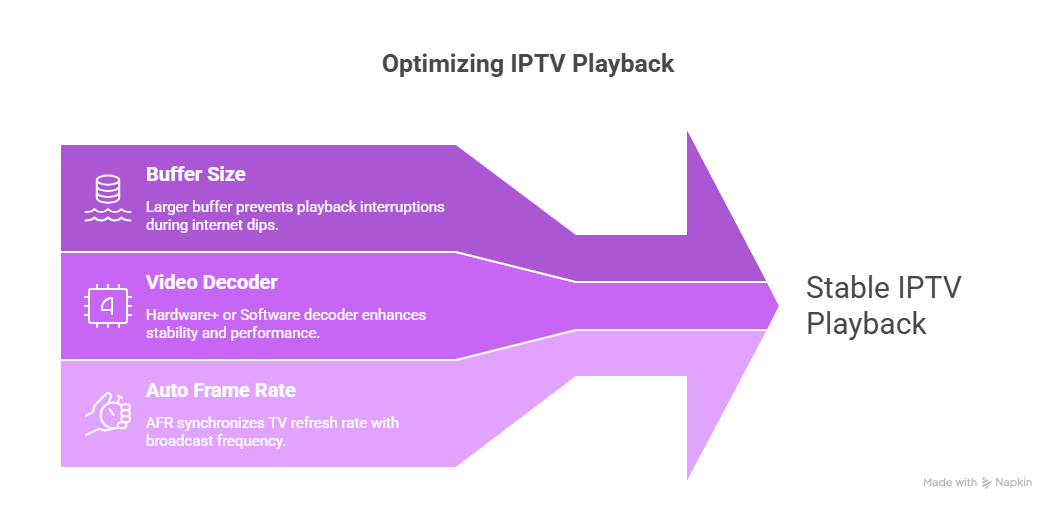
- Increase Buffer Size: In TiviMate, go to Settings > Playlists > [Your Playlist] > Buffer Size.
– For the World Cup, set this to “Large” (4-10 seconds). This creates a larger “safety net” of pre-loaded video. If your internet dips for 2 seconds, the match keeps playing from the cache.
- Switch Video Decoder: Most freezing is caused by “Hardware” (HW) decoding failures. Try switching to “Hardware+” or “Software” (SW). Software decoding uses the CPU; it is more stable but generates more heat, so only use it on powerful devices like the NVIDIA Shield.
- Enable Auto Frame Rate (AFR): This ensures your TV’s refresh rate matches the 50Hz or 60Hz broadcast, preventing “judder” which can sometimes look like a freeze.
5. The DNS Factor: Improving Server Resolution
Every time you change a channel, your device asks a DNS server: “Where is the World Cup stream?” ISP DNS servers are often slow and can be used to “blackout” certain IP addresses during the tournament.
The Pro-Fix: Manually change your DNS to:
Primary: 1.1.1.1 (Cloudflare)
Secondary: 8.8.8.8 (Google)
These servers are optimized for global speed and will resolve the connection to your IPTV provider significantly faster than a local ISP server.
6. Hardware Management: Heat and RAM
Live 4K streaming for 90 minutes is a “Stress Test” for your device. A Firestick or Chromecast is a small computer that can overheat. When a chip gets too hot, it “Throttles” its speed, causing the video to freeze while the audio continues.
- Clear the RAM: Before a big match, use a “Kill Apps” tool to close every background application. Your device needs every megabyte of memory for the World Cup buffer.
- Cooling: If using a stick, use the HDMI extender cable to move it away from the hot back panel of the TV. If using an NVIDIA Shield, ensure the “Performance” mode is set to “Max” and the fan is clean.
7. Troubleshooting “Looping” or “Repeating” Video
If your stream plays for 10 seconds, then jumps back 5 seconds and repeats (Looping), the problem is usually a Playlist Sync Error.
How to Fix Looping: Go to your app settings and Refresh the Playlist. In 2026, many providers use “Dynamic Tokenization.” If your login token expires or the server shifts the URL, your app gets stuck. A manual refresh forces the app to get the newest, working link from the provider.
8. Summary Comparison: Quick Fixes vs. Long-term Solutions
| Symptom | Immediate Fix | Permanent Solution |
|---|---|---|
| Frequent 2-second freezes | Increase Buffer Size to 5s+ | Switch to Ethernet Cable |
| Total freeze (Black Screen) | Switch to “Backup” Channel | Enable VPN (Bypass ISP Block) |
| Video/Audio out of sync | Restart the App | Set Decoder to “Hardware” |
| App keeps crashing | Clear Cache & Reboot | Upgrade to NVIDIA Shield Pro |
9. The “Match Day” Emergency Routine
Do not wait for the opening ceremony to find a problem. One hour before every World Cup match, follow this technical checklist:
 Power Cycle: Unplug your router and streaming device for 60 seconds.
- Manual Update: Go into TiviMate/Smarters and manually click “Update Playlist.”
- VPN Check: Connect your VPN to the fastest local server using the WireGuard protocol.
- Speed Test: Run a test on your TV (not your phone) to ensure you are seeing at least 50 Mbps.
Conclusion: Victory Over Buffering
The 2026 World Cup is the pinnacle of football, and your viewing experience should reflect that. While the internet is more crowded than ever, the tools to bypass congestion have never been more powerful. By hardwiring your connection, securing your traffic with a modern VPN, and fine-tuning your app settings, you move from a “casual viewer” to a “technical expert.”
Don’t be the fan who misses the winning goal because of a 5-second buffer. Take control of your network today, optimize your hardware, and enjoy the beautiful game the way it was meant to be seen—in crystal-clear, uninterrupted high definition.