The 2026 World Cup is a high-stakes event for every football fan. With 48 teams competing across North America, the pressure on streaming servers is at an all-time high. In this environment, technical glitches are common. However, seeing a cryptic number like 401, 403, or 404 on your screen while your team is about to score can be incredibly frustrating.
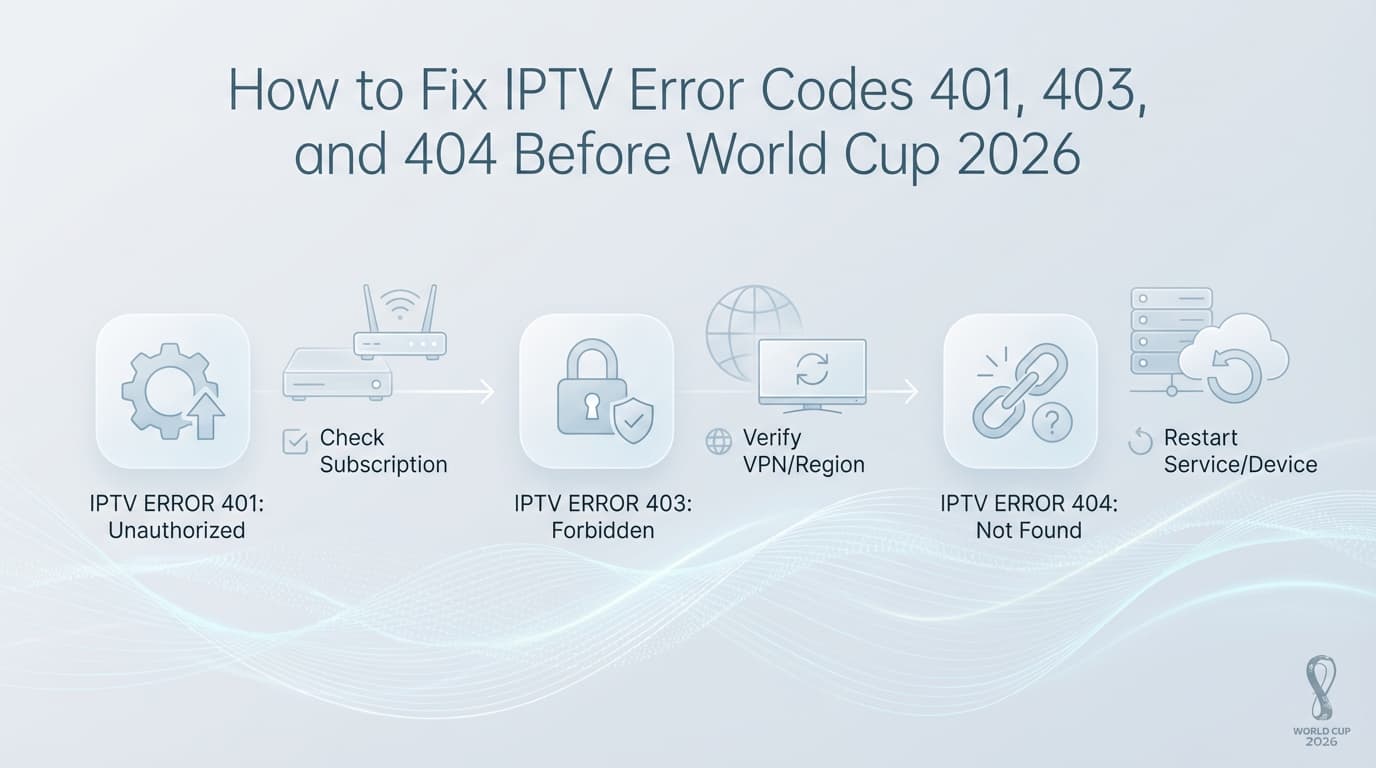
These numbers are not random glitches; they are part of the HTTP Status Code system—a standardized language used by servers to tell your device exactly what went wrong. In this comprehensive educational guide, we will break down the “Big Three” errors you are likely to encounter during the World Cup and provide the technical steps needed to resolve them before the next kickoff.
The Language of Servers: Understanding 4xx Errors
In the world of networking, any error code starting with the number “4” is classified as a Client Error. This means the server received your request but cannot fulfill it because of something on your end—whether it’s a typo in your login, an expired subscription, or a network block. Understanding this helps you realize that in most cases, the power to fix the issue lies in your hands or your settings.
1. Error Code 401: Unauthorized
The 401 Unauthorized error is the most common hurdle for IPTV users. Simply put, it means the server is saying: “I know who you are trying to be, but your key doesn’t work.”
Common Causes for World Cup Fans:
- Credential Typos: During the rush of a match day, entering a “0” instead of an “O” in your password is a frequent mistake.
- Expired Subscription: Many fans forget to renew their service before a major tournament.
- User Agent Blocks: Some servers only allow specific “User Agents” (the identity of your app). If you are using a new or unknown player, the server may reject the handshake.
- Maxed Out Connections: If your plan allows for one device and you are trying to watch on your phone and TV at the same time, the second device will trigger a 401 error.
How to Fix Error 401:
- Re-enter Credentials Carefully: Delete your current playlist and re-add it using the Xtream Codes API. This is more reliable than M3U links. Check for hidden spaces at the end of your username or password.
- Change the User Agent: If you are using TiviMate or OTT Navigator, go to Settings > General > User Agent. Try entering
IPTVSmartersPlayerorVLC. This often tricks the server into allowing the connection. - Check for Concurrent Streams: Ensure no other device in your house is accidentally left on a live channel. Force-stop the app on other devices.
- Contact Support: If you are sure your details are correct, your provider may have temporarily suspended your account for a “security refresh” before the tournament.
2. Error Code 403: Forbidden
The 403 Forbidden error is more serious than a 401. While 401 means “wrong key,” 403 means the server knows who you are but is explicitly refusing to give you the data. It is the digital equivalent of being “blacklisted.”
Common Causes for World Cup Fans:
- ISP Blocking: In 2026, many Internet Service Providers (ISPs) use automated systems to block IPTV server IPs during live sports events.
- Geo-Blocking: If your provider only allows access from your home country and you are traveling, you will be met with a 403.
- VPN Blacklisting: Some IPTV servers block known VPN IP addresses to prevent server overload or fraud.
- Security Triggers: If you refresh your channel list too many times in a minute, the server might flag you as a “bot” and temporarily ban your IP.
How to Fix Error 403:
- The VPN Shuffle: If you aren’t using a VPN, turn one on to bypass ISP blocking. If you are using a VPN and getting a 403, try turning it off or switching to a different server location.
- Flush Your DNS: On a Windows PC, use the command
ipconfig /flushdns. On a Firestick or Shield, a simple restart of the device and your router will clear the DNS cache. - Change Your DNS Provider: Switch your router or TV settings to Cloudflare (1.1.1.1) or Google (8.8.8.8). This prevents your ISP from redirecting your requests to a “Forbidden” landing page.
- Wait it Out: If you’ve been flagged for too many refreshes, the 403 is often a “temp-ban” that lasts 30 to 60 minutes.
3. Error Code 404: Not Found
The 404 Not Found error is the most straightforward but also the most alarming. It means the server exists, but the specific channel or link you are looking for is gone. It’s like arriving at a stadium only to find the game has been moved to a different city.
Common Causes for World Cup Fans:
- Server Maintenance/Moves: To handle the massive 2026 World Cup traffic, providers often move channels to new, more powerful servers at the last minute.
- Typo in the Server URL: If the
http://domain:portpart of your login is wrong, you get a 404. - Channel Removal: If a specific broadcaster (like a local FOX affiliate) is taken down, that specific link will 404.
- Expired M3U Link: Some providers change their M3U structures periodically for security.
How to Fix Error 404:
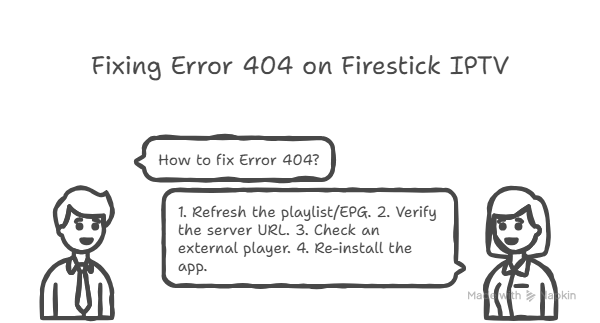
- Refresh the Playlist/EPG: This is the #1 fix. Go to your app settings and click “Update Playlist” or “Refresh Content.” This syncs your app with the provider’s new server locations.
- Verify the Server URL: Contact your provider or check your dashboard. Make sure the “Host” part of your login hasn’t changed. In 2026, many providers are moving from
.comto.netor.orgdomains to avoid takedowns. - Check an External Player: Long-press the channel and select “Play with VLC.” If VLC also says 404, the problem is definitely on the provider’s server, not your app.
- Re-install the App: Sometimes the app’s internal database becomes “stale” and points to old links. Clearing the app cache or a clean re-install forces it to find the current paths.
The “World Cup Match Day” Emergency Checklist
To avoid these errors entirely, we recommend performing this “pre-flight” check 2 hours before every 2026 World Cup match:
| Checkpoint | Action |
|---|---|
| Connectivity | Reboot your router and ensure your Ethernet cable is secure. |
| Data Sync | Perform a manual “Update Playlist” in TiviMate or your chosen player. |
| VPN Status | Ensure your VPN is connected to the fastest available server if your ISP throttles. |
| Device Health | Clear the cache of your IPTV app to free up memory for the 4K stream. |
Conclusion
Errors 401, 403, and 404 can be scary, but they are simply data points. By identifying the code, you can narrow down the solution from “it’s not working” to a specific technical fix. For the World Cup 2026, the key is preparation. Don’t wait until the opening ceremony to test your credentials. Set up your “World Cup Favorites” group today, verify your server URLs, and ensure your hardware is ready to translate those server codes into a flawless 90-minute experience.
Enjoy the tournament, and may your streams be forever buffer-free!
Author’s Note: For more advanced troubleshooting, see our guide on Best IPTV Apps for World Cup 2026 Streaming